Project Name (if applicable, otherwise just type n/a)
Maldon Flora Monitoring
Question
How do I recover locally stored data? I have been saving entries for several hours and then the application crashed due the tablet overheating. When I reopened it all the data entries were gone but the photos were available to upload. I can’t see any photos on the web version despite uploading them, probably as there’s no uploaded data entries linked to them. I assume that the data I had saved has been stored locally on the device but don’t know how I can check and/or recover this data. The data collection is from 7/2/26.
I confirm I have read the User Guide at docs.epicollect.net
on
I confirm I have searched for an answer in this community.
on
I confirm I have tried asking the same question to Perplexity AI with the tag #epicollect5, but it did not help.
on
Could you please provide more details and possibly an example with screenshots to help us better understand what you are aiming to achieve?
This would help us offer more precise assistance or guidance.
Thank you for your cooperation.
On 7/2/26 I recorded data to the
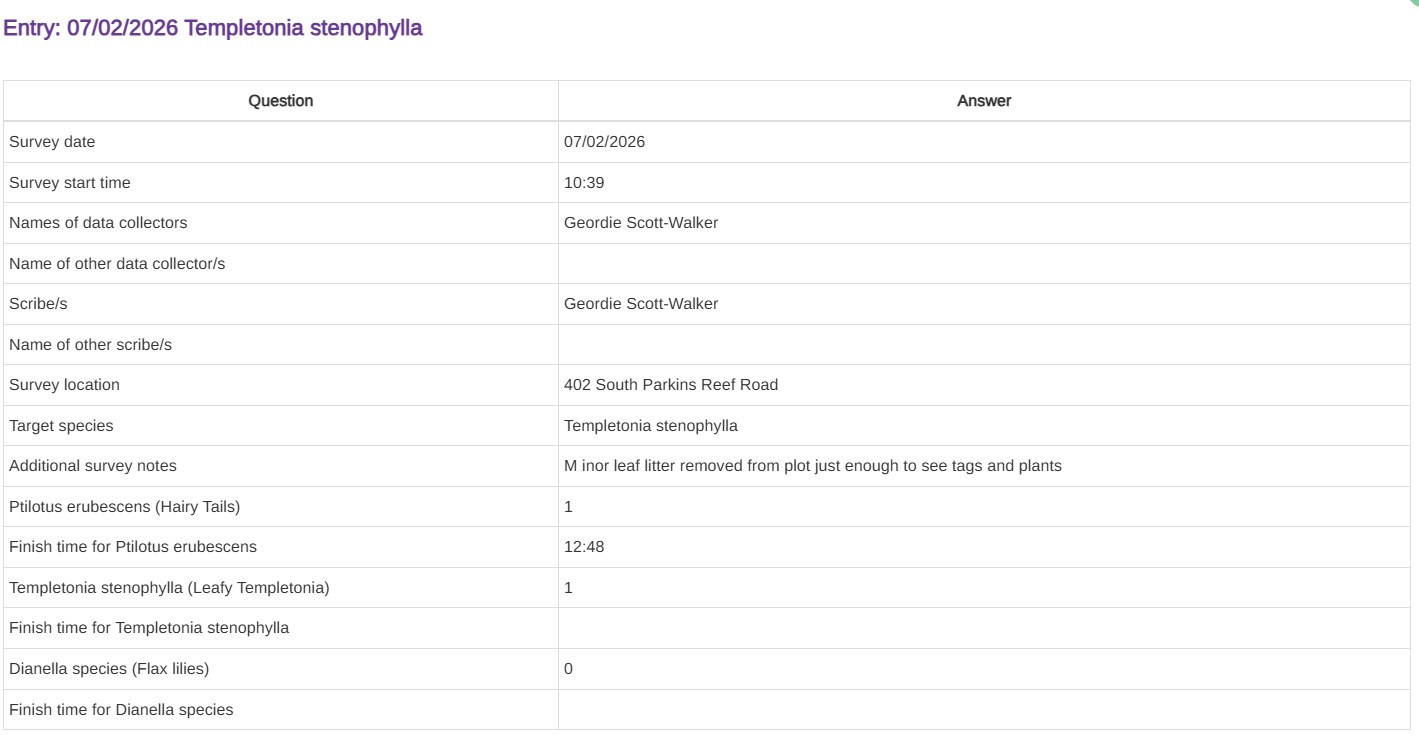
project ‘Maldon flora monitoring’. This included data entries under the branch forms called ‘Ptilotus erubescens (Hairy Tails)’ and ‘Templetonia stenophylla (Leafy Templetonia)’. The uploaded dataset on the epicollect5 cloud shows 1 entry to each of these branch forms, but i actually made 17 entries to Ptilotus erubescens (Hairy Tails) and 10 entires to Templetonia stenophylla (Leafy Templetonia) on the device.
The tablet crashed during data collection and when i reopened it, there was only 1 record showing, which was under the branch form for Templetonia stenophylla (Leafy Templetonia), which I had collected at the very start of the data collection session. The other record shown on the uploaded dataset is in the Ptilotus erubescens (Hairy Tails) branch, and i collected this after rebooting the app. When i uploaded the entire dataset to the epicollect cloud, it included the two records above, and a suite of photographs (I recall there were about 43 i uploaded). There were one or more photos taken as part of each individual record under the branch forms.
What i want to know is whether it is possible to search and retrieve locally stored data records that I hope were saved to my tablet prior to the application crashing (I’m using a Samsung Galaxy Tab Active4). Is there any way to recover this data and avoid needing to recollect it?
Secondly, it seems clear that the 43 photos that were uploaded were associated with the data i had collected. After uploading these photos i have no way of viewing them on epicollect5 online - i don’t have any visibility of them. Is can they be retrieved from the epicollect online server/cloud?
Thank you for the detailed explanation — it does appear that there are two separate issues involved here.
1. Data entries lost after the tablet crash
The entries created before the tablet crash were not saved to local storage and were therefore corrupted or lost. Unfortunately, if those records are no longer visible within the Epicollect5 app on the device, there is no supported way to recover them. In this case, the only option is to recollect the data.
2. Uploaded photographs not visible online
Photos uploaded to Epicollect5 are always tied to specific data entries. It is likely that the photos were originally associated with records that were subsequently removed from the server.
You can try using the “unsync” option in the app and then re-syncing the project, in case there is any mismatch between the device and the server. However, if the corresponding entries are no longer present on either the device or the server, unfortunately there is no way to retrieve the photos or the data.
Thanks for your response - this clears it up mostly. I unsynced the data and resynced it but there was no change suggesting my lost data has since become available. I will re-collect this data shortly.
One final thing I just want to clarify. With respect to the photos I captured during data collection, which of course used the device camera, is there is no locally stored folder where they would exist until being uploaded? I know with alot of other apps that have photo capture functionality, you can generally retrieve the original quality photos from an accessible directory. Is this not the case also with Epicollect5?
Really appreciate your time on this query.
Cheers,
Geordie
Epicollect5 uses industry standard practices to ensure data integrity and security.
Where the Photos Live
When you capture media within the Epicollect5 app, the files are stored in the app’s private internal storage directory.
-
Best Practices: This follows standard mobile development “best practices.” By keeping the media within its own private folder, the app prevents other third-party galleries, file explorers, or cloud-syncing apps from accidentally moving, deleting, or altering your research data before it’s uploaded to the server.
-
No Public Directory: Unlike your standard camera app, these photos do not get saved to the “DCIM” or “Pictures” folders that are accessible via your phone’s default Gallery app.
Can they be accessed manually?
The short answer for most users is no. Because they are in a private partition, the operating system (Android or iOS) blocks access to that folder for your protection.
-
Rooted/Jailbroken Devices: In theory, if a device is “rooted” (Android) or “jailbroken” (iOS), a user could bypass these permissions to reach the private folder.
-
The Caveat: We strongly discourage this. Rooting a device can compromise its security, void warranties, and potentially lead to data corruption within the app itself.
Summary
The photos are definitely stored locally on the device until they are synced, but they stay “under lock and key” within the app’s environment to ensure that what you collect in the field is exactly what arrives on the server.
Reference →
We just released a new beta version of the app (Android only) with a media export option.
If you would like to give it a try, just join the beta →
To join an app’s beta program on Android, open the Google Play Store, search for the app, and scroll down to the “Join the beta” section to tap “Join”.
Beta versions offer early access to features but may be unstable.